Home · Restore Old Photo

Restore and repair old photos

Repair scratches, tears, fading and blur on old family photos — bring damaged memories back to life.

Free preview
No login to try
Your photo only — image-to-image
+ Add photo
⚡Standard▾
Free generations available while daily capacity lasts.

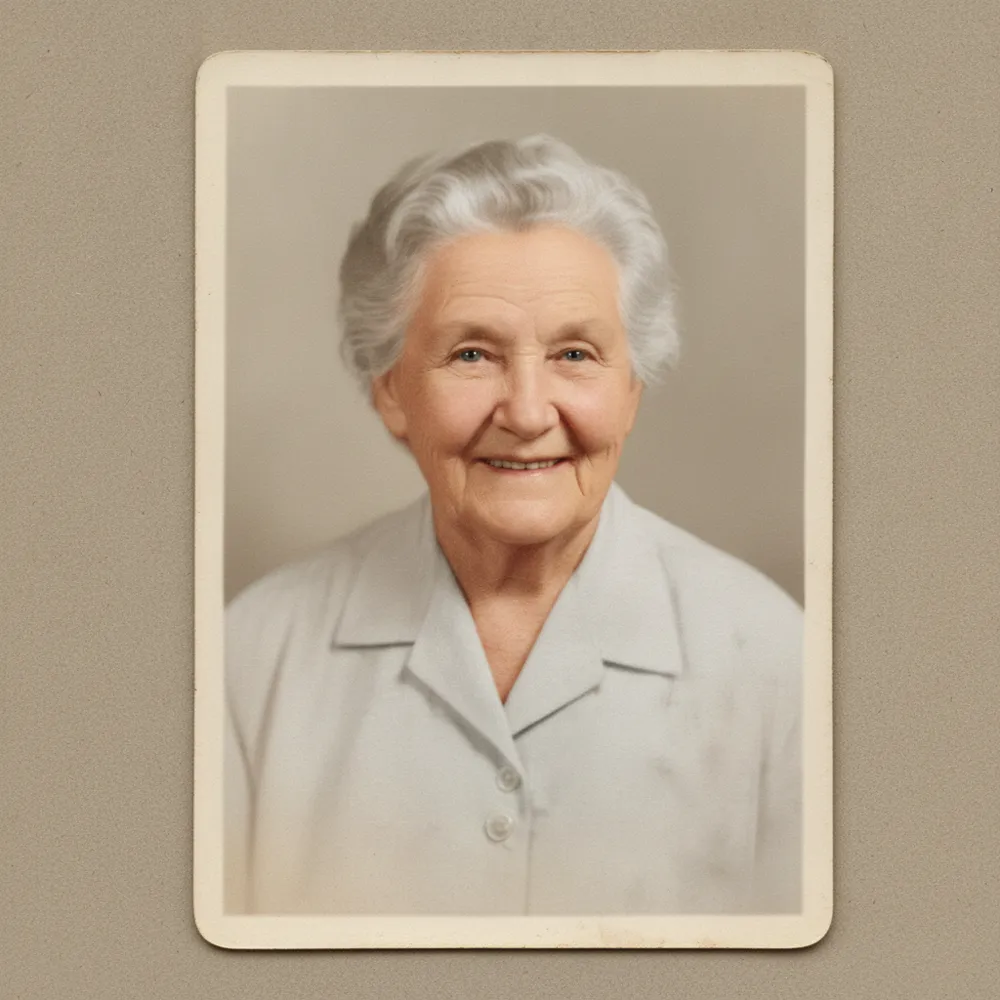
Restore Old Photo — before & after

Real edits. Upload your own to try it.
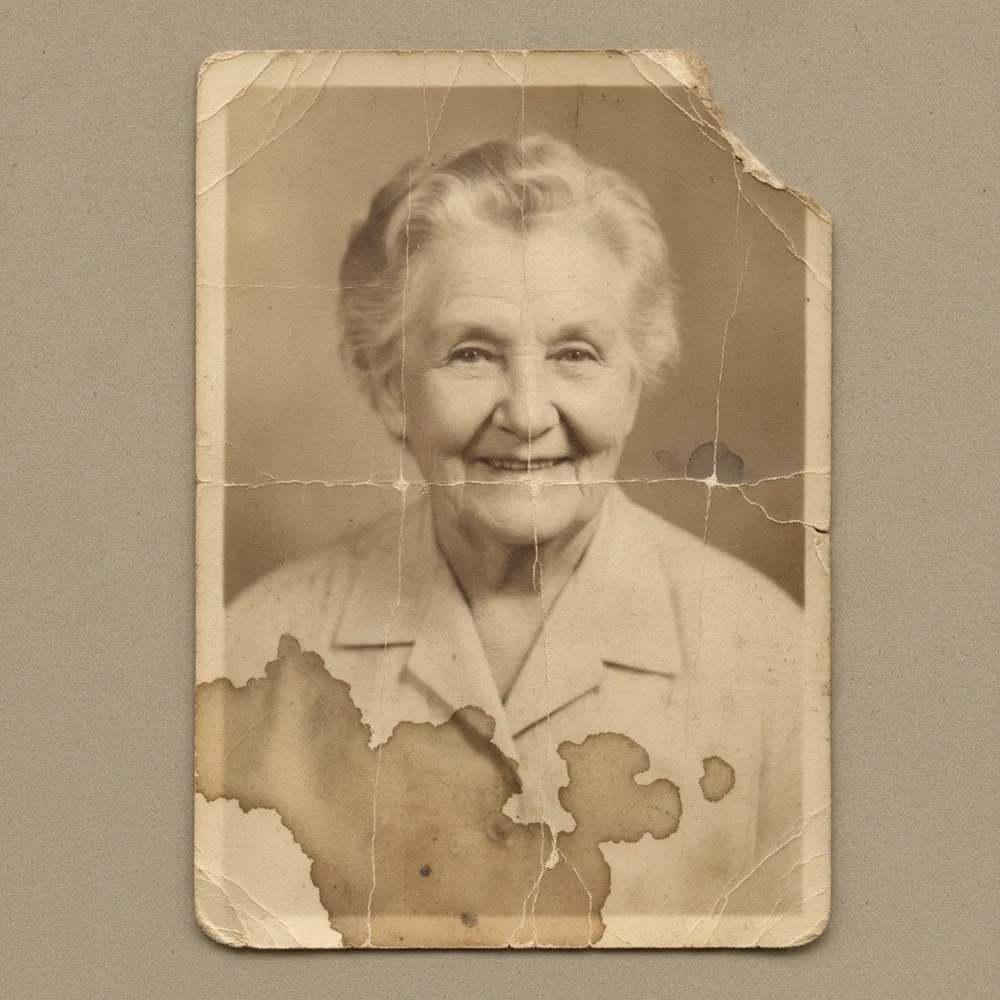
Restore Old Photo before
Restore Old Photo after
“Restore grandma's torn photo”

How to restore an old photo in 3 steps

1

Upload your photo

Drop in the photo you want to edit — Fix Your Pic works on your real picture, not a generated one.

2

Describe the edit

Type what you want, e.g. “Repair the scratches and fading, sharpen the faces”. Plain English, no tools to learn.

3

Get your result

Your edit is ready in seconds — download it free, no account. Pro removes the watermark and gives you full resolution.

What Restore Old Photo handles well

Upload a scan or a phone photo of an old print. The AI repairs tears, cracks, scratches, dust and fading, and sharpens faces that have gone soft — while keeping the people looking like themselves.

Instructions that work

Type them as they are, or change the details. You can keep refining the result with a new instruction.

Where it struggles

Restore Old Photo — FAQ

Can it fix torn or scratched photos?+
Yes — upload a scan or phone photo of the print and it repairs scratches, tears, creases and missing patches.
Will it change how my relatives looked?+
It restores detail while preserving real likeness — it repairs damage rather than inventing new faces.
Can it also colorize the photo?+
Yes — ask to colorize, or use the dedicated Colorize tool for black-and-white shots.
How should I photograph an old print?+
Lay it flat near a window, hold the phone straight above it, turn off the flash and fill the frame. Take it out of the frame if you can — glass adds glare.
Will it change my grandparents' faces?+
It is told to preserve identity, and light damage is repaired without touching features. Heavy damage means more reconstruction; if a face looks wrong, ask it to “keep the face closer to the original”.

More ways to edit your photo